The Focal Easy Guide to Final Cut Pro 5: For New Users and Professionals

Paring down the software to its essentials, this concise, full-color book covers only the key features and essential workflow to get you up and running in no time.
 TABLE OF CONTENTS
 Why its meteoric rise? It worked right out of the box.
MICHAEL HORTON
LOS ANGELES FINAL CUT PRO USER GROUP
Nothing can be done with any editing program if you do not have the video material stored on the hard drives of your computer. It is therefore essential to capture the material before you can begin the editing process. Before you can begin capturing you must instruct the computer where the captured video files will be stored in Final Cut Pro this area is called the Scratch Disks.
Final Cut Pro provides the facility to set up to 12 scratch disks. While you may never have 12 hard drives attached to your system the facility is there if you need it.
Go to the File menu which is found at the top left of the screen.
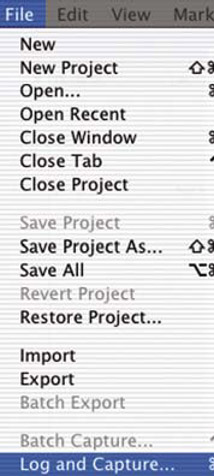
Scroll down to Log and Capture and release your mouse button. The Log and Capture window will now open.

Click on the Capture Settings tab which is located to the right of the
Log and Capture window.
Click the Scratch Disks button. This will reveal the Scratch Disks window.

Press the Set button closest to the top the reason there are several Set buttons is to allow one to set multiple scratch disks.
Navigate to the hard drives on your computer.
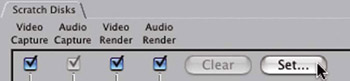
Double click a hard drive. This will set the hard drive as the first scratch disk in the list. If possible, select a drive that does not contain the operating system for...