The Focal Easy Guide to Final Cut Pro 5: For New Users and Professionals

Paring down the software to its essentials, this concise, full-color book covers only the key features and essential workflow to get you up and running in no time.
 TABLE OF CONTENTS
 In the Timeline you should now have several shots edited together. Position the Scrubber Bar in the Timeline at the beginning of the Sequence. Press the upward arrow on your keyboard (located to the right of the Space Bar) and you will find you are now able to skip forward between each of the shots. Press the downward arrow and you will find you can skip backwards through your shots, one by one.

Now, position the Scrubber Bar in the middle of the Sequence.
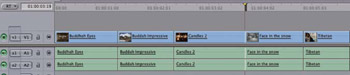
Open a shot in the Viewer and mark the in and out points.
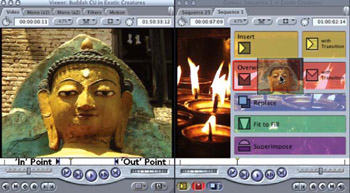
Drag this shot over to the Canvas, however, this time, instead of releasing it over the Insert button, position it over the Overwrite button (marked red). Now release your mouse button.
The shot will be edited into the Timeline but it will not push all of the other shots in front of it further along in the Sequence. Instead, it will write over a portion of the Sequence beginning where your Scrubber Bar is positioned.
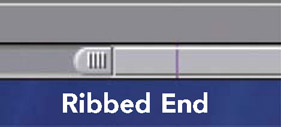
If it is not obvious that this has happened it may be necessary to condense the overall spread of the shots on the Timeline. To do this, look to the bottom of the Timeline and find the slider bar with two ribbed ends. Drag either of these ribbed ends and you will see that the Timeline can be expanded or contracted. This does not affect the length of your movie in any way. What it does...