The Focal Easy Guide to Final Cut Pro 5: For New Users and Professionals
Paring down the software to its essentials, this concise, full-color book covers only the key features and essential workflow to get you up and running in no time.
 TABLE OF CONTENTS
 An alternative way to edit video and audio independently of each other is by locking or unlocking tracks. This provides a very simple and effective way to prevent either audio and video or a combination of both from flowing through to a particular track or series of tracks. It is as simple as locking the track or tracks that you do not wish to alter. Look to the left-hand side of the Timeline and you will see there is a single video track and four audio tracks. This is the default number of video and audio tracks which Final Cut Pro provides you with when you launch the program.
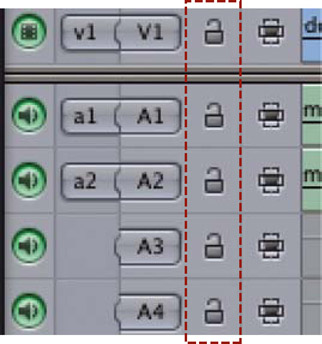
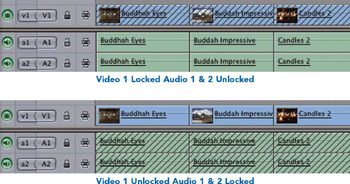
To the immediate right of the V1, A1 and A2 symbols are little locks. Click on the locks and notice the track or tracks become grayed out.
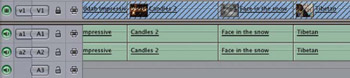
This means that when you edit material from the Viewer to the Canvas, and into the Timeline, the only part of the Timeline which is affected is that which is not locked (or not grayed out).
To lock a track prevents it from being affected during editing. The only way to reactivate the track is to unlock it. This is done by clicking the lock on the left-hand side of the Timeline. Once the track is unlocked it no longer appears grayed out.
The usual rules regarding Insert and Overwrite Edits apply.