The Focal Easy Guide to Final Cut Pro 5: For New Users and Professionals
Paring down the software to its essentials, this concise, full-color book covers only the key features and essential workflow to get you up and running in no time.
 TABLE OF CONTENTS
 The editing that we have done so far has involved editing video and audio at the same time. To produce a professional film one needs to be able to edit video and audio separately. This is easy to achieve with Final Cut Pro and as with many of the editing functions there is more than one way to go about it.
Look to the left of the Timeline and you will notice that where each track is labelled V1 (video 1) and A1 and A2 (audio 1 and 2) there is also a lower-case v1, a1 and a2 symbol. I refer to these as break-off tabs. If you click these tabs you will notice that they break away from the fixed video and audio symbols.
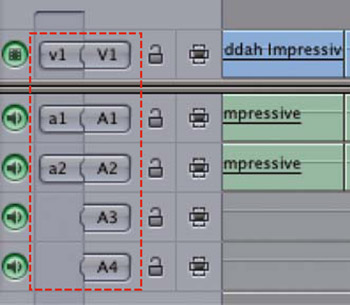
This is a simple patch facility which enables you to quickly and easily direct the flow of audio and video.
Click the break-off tab, v1, next to the capitalized V1 symbol.
You will notice it immediately slides slightly to the left, and is effectively broken away from the fixed V1 symbol. This means that track is inactive for editing.
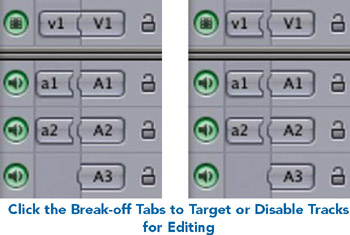
Do the same to the break-off tabs next to A1 and A2. The lower-case tabs will slide to the left of the capitalized A1 and A2 symbols.
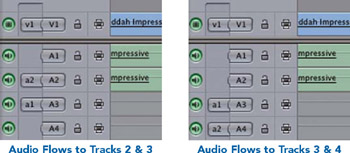
By clicking again on any of these tabs they will slide to the right and rejoin with the symbols to the right, indicating that those tracks are now targeted, or active, for editing.
Now,...