The Focal Easy Guide to Final Cut Pro 5: For New Users and Professionals

Paring down the software to its essentials, this concise, full-color book covers only the key features and essential workflow to get you up and running in no time.
 TABLE OF CONTENTS
 If you wish to clear in or out points there are several ways to achieve this.
Select the Mark menu at the top of the screen.
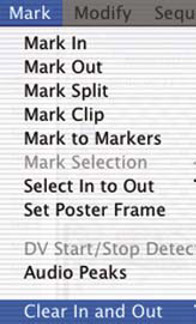
Scroll down and choose the relevant option: clear in and out , clear in or clear out .
Keyboard shortcuts can be used to perform these functions. Hold down the Alt/Option button (two keys to the left of the Space Bar).
| Alt/Option + x | Clear in and out' |
| Alt/Option + i | Clear in' |
| Alt/Option + o | Clear out' |
By holding down the Control key and clicking in the area where one scrolls with the Scrubber Bar, in either the Viewer, Canvas or Timeline, a contextual menu will appear. In and out points can be set or cleared by choosing the relevant command.
It is also possible to alter the in or out points by dragging or repositioning.
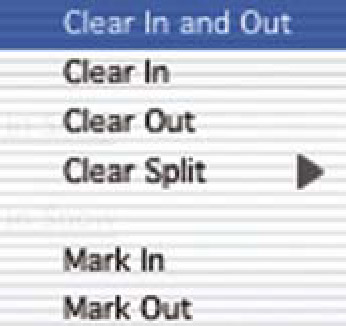
Click on the in or out point symbol in the Viewer, Canvas or Timeline and drag it to where you want it to be repositioned.
Alternatively, position the Scrubber Bar where you want the in or out point to be and press i or o . The in or out point is then repositioned and the previous in or out point is effectively deleted.