The Focal Easy Guide to Final Cut Pro 5: For New Users and Professionals

Paring down the software to its essentials, this concise, full-color book covers only the key features and essential workflow to get you up and running in no time.
 TABLE OF CONTENTS
 Check that you have a Sequence open. If you can see the Timeline in front of you then a Sequence is already open. Your Sequences are stored in the Browser, the same area where your clips and bins are kept. If a Sequence is not open double click a Sequence in the Browser and the Timeline will appear.
Choose a clip from the Browser and double click it this will load the clip into the Viewer (you may have to open one of your bins if you have filed away all of your clips).
With your clip loaded in the Viewer scrub through it. You can do this either by using the Scrubber Bar, or by using J to scrub backwards or L to scrub forwards (tap either of these keys in increments to speed up the rate of scrubbing). Use the Space Bar to start or stop.
Choose a point in the clip where you wish to mark an edit point. Press the i key to mark the in point.
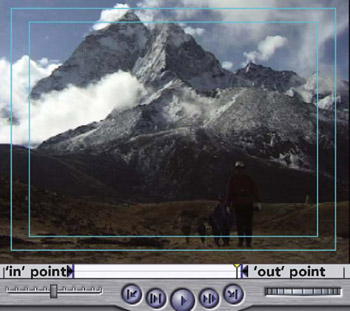
Choose the point where you wish to mark the end point of the clip this will be the out point. Press o to mark the out point.
The procedure for marking in and out points is the same as that you already experienced during the logging process.
Once you have marked the in and out points you are now ready to edit the shot into the Sequence. There should be no shots in the Sequence at this...