The Focal Easy Guide to Final Cut Pro 5: For New Users and Professionals

Paring down the software to its essentials, this concise, full-color book covers only the key features and essential workflow to get you up and running in no time.
 TABLE OF CONTENTS
 So far we have only marked in and out points in the Viewer with the positioning of the Scrubber Bar determining where the Insert or Overwrite Edit will be edited in the Timeline. It is also possible to enter the in and out points directly into the Timeline. Simply position the Scrubber Bar where you want to mark the in point and press i and similarly press o where you want to mark the out point.
By marking a single in point in the Viewer you can then perform an Insert or Overwrite Edit. The positioning and duration of the edit is determined by the in and out points marked in the Timeline.
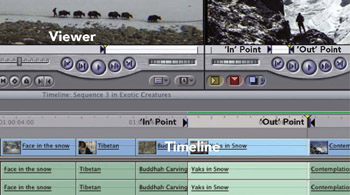
It is also possible to mark the in and out points in the Canvas.
What is being illustrated here is known as Three Point Editing. Essentially, all editing in Final Cut Pro works according to the Three Point Editing system. Even if it appears that only two points have been marked, the positioning of the Scrubber Bar in the Timeline serves as the third point.
It is important to be aware that whatever points are marked in the Timeline will be reflected in the Canvas and vice versa. The Timeline and Canvas are intimately related at all times they are in no way independent of each other.
It may be clear at this stage just how closely the Viewer and Canvas mimic a traditional two-machine editing suite. If one forgets about the Timeline for...