Learning MicroStation VBA

Chapter 10: Visual Interface

Overview

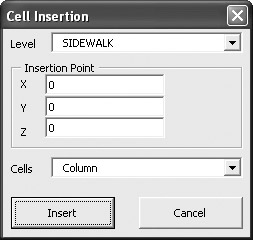
It is time to begin working with the "Visual" side of VBA. Let's consider the form shown. It is composed of labels (Level, Cells, X, Y, and Z), two combo boxes (with SIDEWALK and column selected), three text boxes (for X, Y, and Z values), and two CommandButtons labeled Insert and Cancel.

Creating a good graphical user interface (GUI) can be one of the most challenging elements of software development. Anyone can throw buttons on a form, but making the interface user friendly and intuitive takes thought, effort, and being open to the ideas of others.

Let's discuss the form shown above. The goal is to allow the user to insert cells on a specific level at a specific point. Which should come first? The Cell Name ComboBox? If we know which cell we want to insert, perhaps it should appear first. What if the list of cells is dependent on the selected level? This would keep us from inserting a cell on the wrong level. So, perhaps the level should be first. Then we have the insertion point. Perhaps it would be best if the insertion point appeared after the level and cells combo boxes. And perhaps we should allow the user to pick the insertion point in addition to being able to enter the insertion point by hand. Let's move things around a little.

How does this look? Better? OK. We have the visual elements arranged now. After you create the basic interface, you can begin writing...

UNLIMITED FREE
ACCESS
TO THE WORLD'S BEST IDEAS

SUBMIT
Already a GlobalSpec user? Log in.

This is embarrasing...

An error occurred while processing the form. Please try again in a few minutes.

Customize Your GlobalSpec Experience

Category: Hemocytometers
Finish!
Privacy Policy

This is embarrasing...

An error occurred while processing the form. Please try again in a few minutes.