We all know there is no reason to keep reinventing the wheel. Using existing resources speeds the development process and can result in a more bug-free application.
Using ActiveX Controls
ActiveX controls are used in our graphical user interface development. We have already used TextBoxes, ComboBoxes, CommandButtons, labels, and other controls.
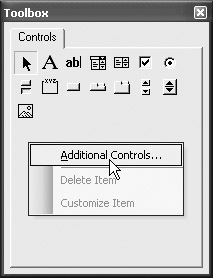
When we insert a UserForm in our VBA project, the Toolbox dialog box normally displays. Right-clicking on the Toolbox allows us to add Additional Controls.
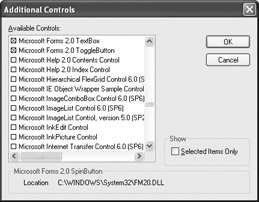
As you scroll through the list of items, you see a great variety of Controls. The list on each computer will be different because controls are added when software is installed. Some of the controls shown in the image above are installed when Visual Basic 6.0 is installed.
The fact that a control is shown in the list does not mean you can use it, because some controls require a license. Let's look at a few controls that are available to us.
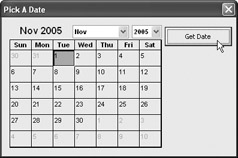
For demonstration purposes, I will use the "Calendar Control 11.0" control in this example.This control is installed with Microsoft Office.Select it from the list ofAvailable Controls and click the OK button.
Once it shows up in the Toolbox we can place it on our form with other controls we want to use.
Clicking on the button displays the selected date.
Private Sub btnDisplaySelection_Click() MsgBox Calendar1.ValueEnd Sub
If you are writing an application that uses a non-standard ActiveX Control, you need to make sure that you can successfully deploy...


 TABLE OF CONTENTS