Planning Using Primavera: Suretrak Project Manager Version 3.0
9.2: Adding Relationships to the Activities

9.2 Adding Relationships to the Activities

There are a number of methods of adding logic to activities. We will look at the following techniques:

  • Graphical Adding, Editing and Deleting Relationships

  • Series Link and Unlink

  • Successor and Predecessor forms

  • PERT View

9.2.1 Graphical Adding Relationships

There are two modes of screen presentation. The first is with links displayed on the screen and the second is without links. Logic may be added on the screen using the mouse when links are displayed or hidden. To change between modes click on the icon in the tool bar, push F3 or select View, Relationships.

The Relationship Lines may be formatted by selecting Format, Relationship Lines which will display the Format Relationship Lines form. The defaults are normally acceptable.

To add relationships you can click on the end of the predecessor activity bar, which will change the mouse arrow to a . Then simply hold down the left mouse, drag to the start of the successor activity and release the mouse button.

To create other relationships such as Start to Start, drag from the beginning of the predecessor to the beginning of the successor bar.

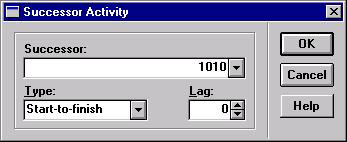
When you add a link, SureTrak will display the Successor Activity form, to confirm the link, the type of link and the lag.

9.2.2 Editing Relationships in the Bar Chart View

To edit a relationship, move the mouse arrow over the relationship...

UNLIMITED FREE
ACCESS
TO THE WORLD'S BEST IDEAS

SUBMIT
Already a GlobalSpec user? Log in.

This is embarrasing...

An error occurred while processing the form. Please try again in a few minutes.

Customize Your GlobalSpec Experience

Category: Remote Control Software
Finish!
Privacy Policy

This is embarrasing...

An error occurred while processing the form. Please try again in a few minutes.