Harnessing AutoCAD 2007

Chapter 1: Getting Started

INTRODUCTION

This chapter covers starting AutoCAD, entering commands, and finding your way around the AutoCAD screen.

After completing this chapter, you will be able to do the following:

  • Start AutoCAD

  • Identify the various parts on the screen

  • Use various methods of command and data input

  • Obtain help about the AutoCAD commands and features

  • Start a new drawing

  • Open an existing drawing

  • Set up the drawing environment

STARTING AUTOCAD

Designing and drafting is what AutoCAD (and this book) is all about. So how do you get into AutoCAD? Choose the Start button (Windows 2000/ME, Windows NT 4.0, and XP operating systems), navigate to the Autodesk/AutoCAD 2007 program group, and then select the AutoCAD 2007 program. Or on some systems you can double-click on the AutoCAD 2007 startup icon on the Windows desktop to start AutoCAD.

THE STARTUP WINDOW

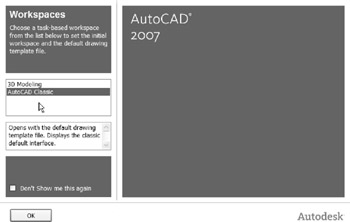
After AutoCAD 2007 has been installed and authorized, you are presented with a Workspace dialog box from which you can establish how the startup screen will be configured: 3D Modeling or AutoCAD Classic (see Figure 1-1).


Figure 1.1: AutoCAD 2007 OTB (Out of The Box) Initial Workspace Option Dialog Box

AutoCAD Classic opens with the default drawing template file and displays the classic default interface.

3D Modeling opens with a 3D view using a 3D drawing template file and displays an interface designed for working in 3D.

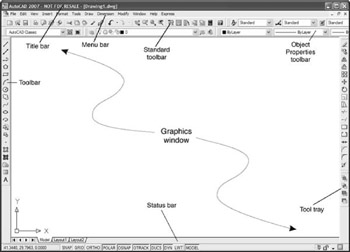
For beginning students, the AutoCAD Classic configuration should be selected. AutoCAD displays a blank drawing window surrounded by menus and toolbars as shown in Figure 1-2.


Figure 1.2:

UNLIMITED FREE
ACCESS
TO THE WORLD'S BEST IDEAS

SUBMIT
Already a GlobalSpec user? Log in.

This is embarrasing...

An error occurred while processing the form. Please try again in a few minutes.

Customize Your GlobalSpec Experience

Category: Drawing Software
Finish!
Privacy Policy

This is embarrasing...

An error occurred while processing the form. Please try again in a few minutes.