AutoCAD makes the work of creating solids a little easier by providing editing tools, including chamfering or filleting the edges, creating a cross-section through a solid, creating a new solid by cutting the existing solid and removing a specified side, and creating a composite solid from the interference of two or more solids. In addition, AutoCAD provides additional editing tools such as extrude faces, move faces, offset faces, delete faces, rotate faces, taper faces, color faces, copy faces, color and copy edges, imprint, clean, separate solids, shell, and check. If necessary, you can always use the AutoCAD modify and construct commands, such as MOVE, COPY, ROTATE, SCALE, and ARRAY to edit solids.
CHAMFERING SOLIDS
The CHAMFER command (explained in Chapter 4) can also be used to bevel the edges of an existing solid object.
Invoke the CHAMFER command from the Modify toolbar (see Figure 15-89).
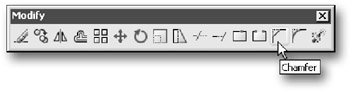 Figure 15.89: Invoke the CHAMFER command from the Modify toolbar
 AutoCAD prompts:
<span class="beginpage"> pagenum="875"><a name="2420"></a><a name="IDX-875"></a></span>Select first line or <span class="inlinemediaobject"><img alt="Image from book"> border="0"> height="19"> id="IMG_1278"> src="https://images.books24x7.com/bookimages/id_26295/figu875_1.jpg"> title=""> width="20"></span> <i class="emphasis">(select an edge on a</i> 3D <i class="emphasis">solid)</i>
If you pick an edge that is common to two surfaces, AutoCAD highlights one of the surfaces and prompts:
Base surface selectionEnter surface selection option
If this is the surface you want, press ENTER to accept it. If it is not, enter N (for next) to highlight the adjoining surface and then press ENTER. AutoCAD prompts:
Specify base surface chamfer distance

 TABLE OF CONTENTS