Mastering Autodesk VIZ 2005

Adding Materials to Objects

For our tutorial, you'll start by selecting a few standard materials from a list and applying them to the model. Then, after checking the appearance of the materials with a test rendering, you'll look at ways to adjust the materials to better suit your model.

Before you dive in, it is important to let VIZ know where the dependent files are that you plan to use in your project.

Adding a Map Path to Help VIZ Find Bitmaps

VIZ needs to know where different types of files are kept for its use. VIZ stores its bitmap images in subfolders under Maps within the main VIZ folder. When you start to create your own materials, it may be a good idea to keep your own bitmap files in folders that are separate from the standard VIZ Map folder. For example, you might create a folder under the VIZ folder called Custom Maps to store your own bitmap files, or you might make a series of subfolders on your server so that the same set of maps can be shared within your office.

On the CD In the exercises in this chapter, you'll use bitmap files from the companion CD. The first step is to let VIZ know where to look for the files from the CD.

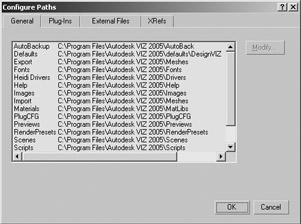
  1. Choose Customize Configure Paths. The Configure Paths dialog box appears.

  2. Click the External Files tab. You see a list showing...

UNLIMITED FREE
ACCESS
TO THE WORLD'S BEST IDEAS

SUBMIT
Already a GlobalSpec user? Log in.

This is embarrasing...

An error occurred while processing the form. Please try again in a few minutes.

Customize Your GlobalSpec Experience

Category: File Compression Software
Finish!
Privacy Policy

This is embarrasing...

An error occurred while processing the form. Please try again in a few minutes.