Mastering Autodesk VIZ 2005

Editing Materials

The last time you rendered your Villa Savoye model, the glass was virtually invisible, and the ground color and texture looked too strong and unnatural. In this section, you'll learn how to use the Material Editor to adjust both the glass and Ground-Grass materials to improve your image.

Adjusting Bitmap Strength

We'll start our exploration of the Material Editor by making a few changes to the Ground-Grass material. The grass pattern is repeated regularly, so that it looks almost like a manicured baseball field. Also, the ground surface is quite flat. Let's adjust the material so that it looks a bit more like a natural grass surface.

  1. Click the Material Editor tool in the main toolbar to open the Material Editor window.

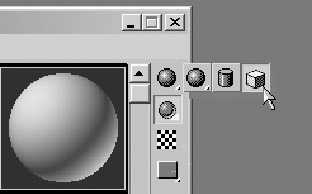
    The sample of the Ground-Grass material is shown on a sphere, but the surface to which you are applying the material is flat. You can get a preview image on a cube instead of on a sphere to get a sample view that's more in line with the object you are mapping to.

  2. Click and hold the Sample Type tool in the set of tools to the right of the window. You see a flyout containing two additional sample types.

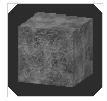
  3. Drag the mouse over to the cube. Release the mouse. The sample changes to a cube shape.

Now the sample gives us a better idea of what the Ground-Grass material looks like, and it certainly looks similar...

UNLIMITED FREE
ACCESS
TO THE WORLD'S BEST IDEAS

SUBMIT
Already a GlobalSpec user? Log in.

This is embarrasing...

An error occurred while processing the form. Please try again in a few minutes.

Customize Your GlobalSpec Experience

Category: Tooling Plates and Columns
Finish!
Privacy Policy

This is embarrasing...

An error occurred while processing the form. Please try again in a few minutes.