Mastering Autodesk VIZ 2005

Using Bump Maps

Earlier in this chapter, you saw a sample of a bump map (Figure 7.5). It showed how a grayscale image creates the impression of a bumpy surface. Bump maps can also generate other types of surface textures.

In the following exercise, you'll modify the ground material to make the ground appear more like a rolling surface than a flat one.

  1. Open the file you saved earlier as ch07b.max.

  2. Click the Material Editor tool on the main toolbar to open the Material Editor.

  3. In the Material Editor, click the Ground-Grass sample slot in the middle of the top row.

  4. Scroll down the Material parameters to the Maps rollout and open it.

  5. Click and drag one of the None buttons onto the Grass2.jpg button that is currently shown in the bump channel. This will clear the bump map selection. Then click the Bump Map button.

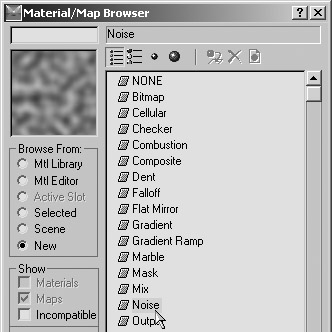
  6. In the Material/Map Browser, make sure that the New radio button is selected in the Browse From group and then click Noise from the list. You'll see a sample of Noise in the upper left corner of the dialog box.

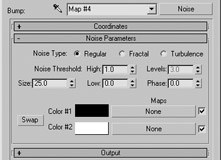
  7. With Noise selected, click OK. The parameters for Noise appear in the Material Editor.

You may recall that a bump map uses varying shades of gray to determine the highs and lows of the bumps on a surface. The Noise material is a procedural map that generates a random pattern of gray tones. As a...

UNLIMITED FREE
ACCESS
TO THE WORLD'S BEST IDEAS

SUBMIT
Already a GlobalSpec user? Log in.

This is embarrasing...

An error occurred while processing the form. Please try again in a few minutes.

Customize Your GlobalSpec Experience

Category: Laboratory and Calibration Gases
Finish!
Privacy Policy

This is embarrasing...

An error occurred while processing the form. Please try again in a few minutes.