Rendering with MicroStation
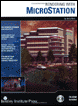
Through illustrations and hands-on exercises, this book covers every aspect of rendering in detail, including cameras, materials, lighting, environment maps, and rendering settings.
 TABLE OF CONTENTS
 Of all of the tools and techniques for achieving truly photorealistic results, when rendering with MicroStation, lighting has the most impact. Without correct illumination, a 3D scene will look very flat and two-dimensional. This chapter presents the lighting tools in MicroStation and how to properly use them to improve your rendering results.
MicroStation provides two types of lighting: source and global. Source lighting is created via special cells that you place in a model and is covered later in this chapter. Global lighting is available for a DGN file (all models) via settings in the Global Lighting dialog box.
When you first began to render with MicroStation, you picked a rendering method and hoped for the best. If you were lucky, the model already had decent global lighting configured, and the rendering results were acceptable, if not a bit mediocre. This was a result of the Solar, Ambient, and Flashbulb Light settings, inherited from the original 3D seed file.
In the following exercises, you will begin by ray tracing a view in a model, using the current global lighting settings. Following this, you will adjust settings for the global lighting to improve the image.
Open Global Lighting.dgn.
You will ray trace View 2 with the current global lighting settings. Since you do not have a ray trace solution yet, the only option will be to Create a new solution.
Select Render with the following tool...