Rendering with MicroStation
Through illustrations and hands-on exercises, this book covers every aspect of rendering in detail, including cameras, materials, lighting, environment maps, and rendering settings.
 TABLE OF CONTENTS
 Before you can render 3D models, you must be familiar with the viewing tools that are part of the MicroStation design environment. These tools allow you to visualize the model from any plane or an in isometric view. These tools allow you to rotate, clip, and mask the views.
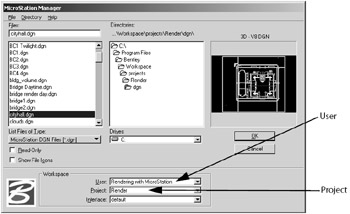
When you open MicroStation to do the first exercise, open the program from the menu or shortcut rather than double-click on the design file name. When the MicroStation Manager dialog box opens (as shown in the illustration on the next page), select the following:
User: Rendering with MicroStation
Project: Render
You live in a three-dimensional world in which you can move and look in any direction. Likewise, in a 3D model, you can move the eye point and change the viewing direction, to view your design from any direction. MicroStation's 3D view control tools let you view a design from any location within the design cube. For quick setup, there are a number of standard views that you can use. You can rotate the view in any direction or add perspective using camera view. Once you have the view set up, you can produce photorealistic images, walkthroughs, or animations of the finished construction before it is built.
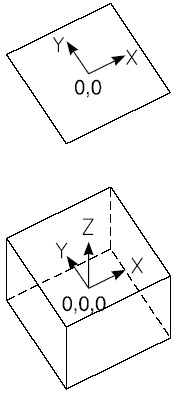
In a 3D model, you work within a design cube, which differs from the 2D model design plane as follows: