Rendering with MicroStation
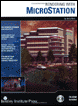
Through illustrations and hands-on exercises, this book covers every aspect of rendering in detail, including cameras, materials, lighting, environment maps, and rendering settings.
 TABLE OF CONTENTS
 When you create a 3D model from scratch, you will need to create and/or assign materials for photorealism. The model otherwise will be rendered only in its element's colors. In the previous chapter, you were introduced briefly to the tools for assigning materials to elements in a model. This chapter teaches you, in more detail, how to create and assign materials to your models.
One of the most important rendering tools for achieving photorealistic results is the Material Editor. Whether you are a visualization novice or an expert, you will spend a great deal of time with this tool, and mastery of it is all-important in visualization projects both small and large. The Material Editor provides you with the means to create custom materials with such interesting properties as transparency, translucency, reflection, refraction, texture maps, and more.
Open the file materials.dgn.
 In the Rendering Tools tool box, select the Define Materials tool.
The Material Editor dialog box opens. Since no palettes are open, nor materials defined, most items are grayed out. To start off, you must create a palette or open an existing material palette.
In the Material Editor, select Palette > Open.
In the Open Palette dialog box, locate and select the file s tarter.pal in the course \ dgn directory.
Click OK.
The material definitions in the selected palette file are read into MicroStation, and a list of materials...