How to Cheat in 3ds Max 2009: Get Spectacular Results Fast

Multiple Maps

You will often need to map several different textures onto one object. There are many ways to do this, but the one shown here is the quickest.

The key is to assign both materials and mapping to selected polygons at the same time. This technique automatically creates a Multi/Sub-Object material for you with exactly the right materials in the right places.
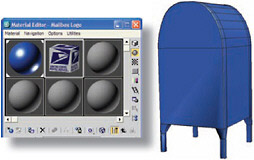
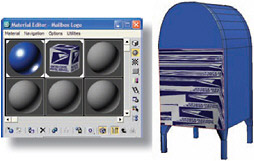
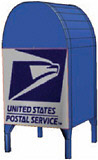
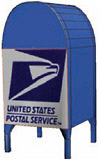
Figure 1: Assign a material with a plain color to the object. Drag the material to another slot to make a copy, and give it a different name. In this second material, assign the texture map you want to apply as the Diffuse map.

Figure 2: At the Polygon sub-object level, select the polygons to which you want to apply the texture map. Assign the material to the object while still at the Polygon sub-object level. This assigns the material to the selected polygons only.

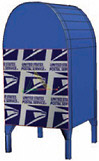
Figure 3: While still selected at the Polygon sub-object level, apply a UVW Map modifier to the object. Use the View Align and Fit options to line up the gizmo with the approximate size and orientation.

Figure 4: Choose the Bitmap Fit option on the UVW Mapping modifier, and pick the texture map. This will resize the gizmo to the same aspect ratio as the bitmap.

Figure 5: If the texture needs to be moved or scaled, access the Gizmo sub-object level of the UVW Mapping modifier, and move or scale the gizmo.

Figure 6: If the map is a decal (meaning...

UNLIMITED FREE
ACCESS
TO THE WORLD'S BEST IDEAS

SUBMIT
Already a GlobalSpec user? Log in.

This is embarrasing...

An error occurred while processing the form. Please try again in a few minutes.

Customize Your GlobalSpec Experience

Category: Underground Locating Equipment
Finish!
Privacy Policy

This is embarrasing...

An error occurred while processing the form. Please try again in a few minutes.