How to Cheat in 3ds Max 2009: Get Spectacular Results Fast

Unwrapping the Mapping

Mapping a vertical surface like a mountain presents specific difficulties that can be solved only with the Unwrap UVW modifier.

This powerful tool can be used in a variety of situations. Here it s used to clean up mapping artifacts on a vertical surface.

Learning to visualize how the Edit UVWs dialog relates to the object takes some practice, but it s well worth the time spent. Once you know how to unwrap your UVWs, you ll be able to map any object with ease regardless of its size or shape.
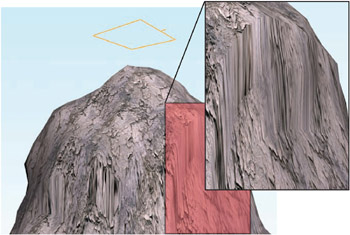
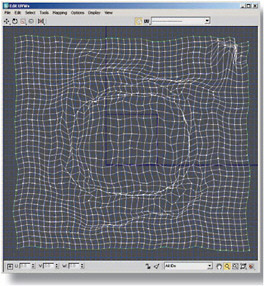
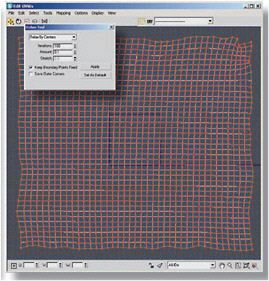
Figure 1: Planar mapping works fine for the top of the mountain, but you ll get stripes on the sides due to the map pixels going straight down.

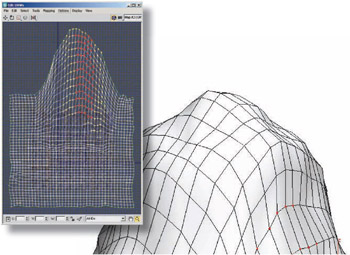
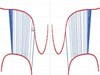
Figure 2: Apply an Unwrap UVW modifier and click Edit, and you ll see why. The vertices in the vertical areas are all bunched up around the center of the mapping coordinates. You ll use the Relax tool to fix this.

Figure 3: Select all the points and choose Tools menu > Relax. Choose the Relax by Centers option with the Keep Boundary Points Fixed option turned on, and click Apply several times until the distribution evens out.

Figure 4: For extreme vertical areas, you can also reduce the striping further by scaling selected vertices so they use more of the map. Vertices selected in the viewport are automatically selected in the Edit UVWs dialog, and vice versa.

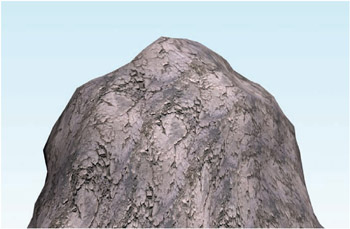
Figure 5: If the bitmap is displayed on the object in the viewport, you ll see it...

UNLIMITED FREE
ACCESS
TO THE WORLD'S BEST IDEAS

SUBMIT
Already a GlobalSpec user? Log in.

This is embarrasing...

An error occurred while processing the form. Please try again in a few minutes.

Customize Your GlobalSpec Experience

Category: Mesh Generators
Finish!
Privacy Policy

This is embarrasing...

An error occurred while processing the form. Please try again in a few minutes.