How to Cheat in 3ds Max 2009: Get Spectacular Results Fast

Including a host of time-saving techniques as well as little-known tools that will make you look like an expert in no time flat, this book will show you how to get results with 3ds max fast.
 TABLE OF CONTENTS
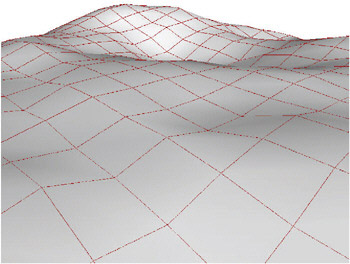
 A large landscape might call for gradual changes from one kind of ground cover to another. Examples would be grass and dirt on a forest floor, or rocks and snow on a mountaintop.
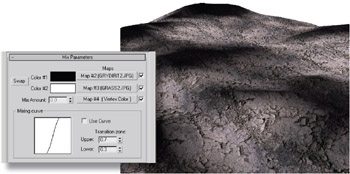
There are a number of ways you could create the texture map for such a landscape, such as mixing two maps using a Noise map to vary it across the surface. But with that type of setup, it would be hard to control where each map appears on the terrain.
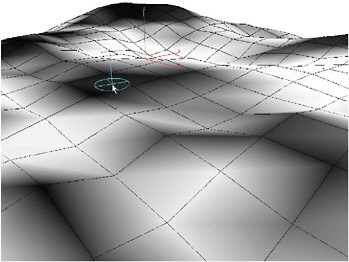
Instead, you can use vertex painting to put different maps on specific areas. This technique gives you fine control over the final look of the landscape while retaining natural-looking variations from one map to another.