How to Cheat in 3ds Max 2009: Get Spectacular Results Fast

Material Editor Basics

The material editor is the heart of all materials and mapping. Here is where you specify the maps that will be applied to the object. This topic is a quick guide to the Material Editor tools you ll use the most often.

When navigating the Material Editor, keep in mind that it works with a tree structure, where every map is considered a child of the main material.
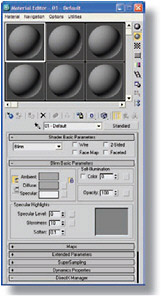
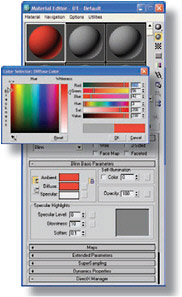
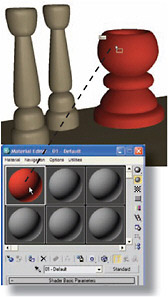
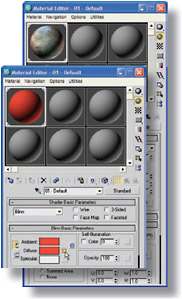
Figure 1: Open the Material Editor by pressing the M key or clicking the Material Editor button on the toolbar. Note the sample slots across the top, which will guide you in the material creation process.

Figure 2: For a bit of quick gratification, click the Diffuse color swatch on the Blinn Basic Parameters rollout and change the color in the Color Selector. The Diffuse color is the main color of the object.

Figure 3: The easiest way to assign the material is to drag from the sample slot and drop it on the object. Triangles appear at the corners of the sample slot to indicate that the material has been assigned.

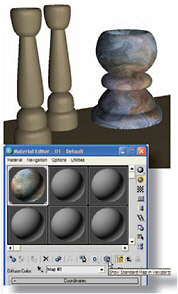
Figure 4: Now for the fun part--assigning a map for the Diffuse color. In the Material Editor, click the small box next to the Diffuse color swatch, choose Bitmap from the Material/Map Browser, and pick a bitmap texture.

Figure 5: To make the bitmap show up on the object in viewports, click the Show Standard Map in Viewport button on the Material Editor toolbar. In 3ds Max...

UNLIMITED FREE
ACCESS
TO THE WORLD'S BEST IDEAS

SUBMIT
Already a GlobalSpec user? Log in.

This is embarrasing...

An error occurred while processing the form. Please try again in a few minutes.

Customize Your GlobalSpec Experience

Category: Color Meters and Appearance Instruments
Finish!
Privacy Policy

This is embarrasing...

An error occurred while processing the form. Please try again in a few minutes.