How to Cheat in 3ds Max 2009: Get Spectacular Results Fast

Preparing Textures

Good texture maps are the key to believability in your renderings. Realistic textures can bring a crude model to life, but it doesn t work the other way around. If your textures aren t up to par, your rendering will suffer accordingly.

Rather than paint your own textures, start with photographs as a base and do a bit of cleanup in Photoshop.
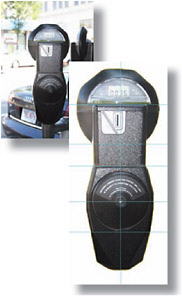
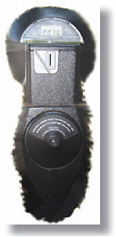
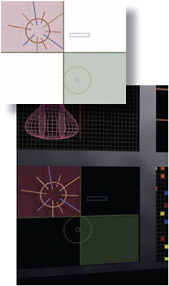
Figure 1: A straight-on photograph of an object makes an excellent basis for a texture map. In Photoshop, remove perspective with the Warp and Distort tools and clean up the image.

Figure 2: If the map doesn t match the object exactly, the background color will bleed onto the object. Use Photoshop s Smudge tool to push the edges of the image and make it larger.

Figure 3: You can also create textures right in 3ds Max by rendering an orthographic viewport. This is a great way to make animated textures for television and monitor screens.

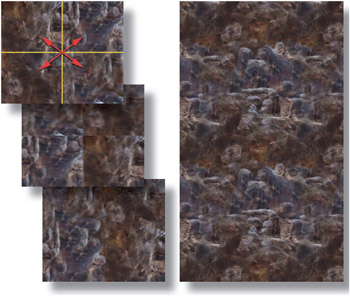
Figure 4: To make a map tileable, cut it into four equal quadrants and swap each one with its diagonal counterpart. Clean up the visible edges in the middle, and the result is a tileable map. This technique is particularly good for landscape elements that need to be tiled over a large area, like grass, rocks, and sand. Use a texture like this with the Gradual Mix cheat to make a natural-looking landscape.

Figure 5: If you need a Bump map, make a grayscale version of your texture map and increase the contrast so...

UNLIMITED FREE
ACCESS
TO THE WORLD'S BEST IDEAS

SUBMIT
Already a GlobalSpec user? Log in.

This is embarrasing...

An error occurred while processing the form. Please try again in a few minutes.

Customize Your GlobalSpec Experience

Category: Platforms and Walkways
Finish!
Privacy Policy

This is embarrasing...

An error occurred while processing the form. Please try again in a few minutes.