How to Cheat in 3ds Max 2009: Get Spectacular Results Fast

Including a host of time-saving techniques as well as little-known tools that will make you look like an expert in no time flat, this book will show you how to get results with 3ds max fast.
 TABLE OF CONTENTS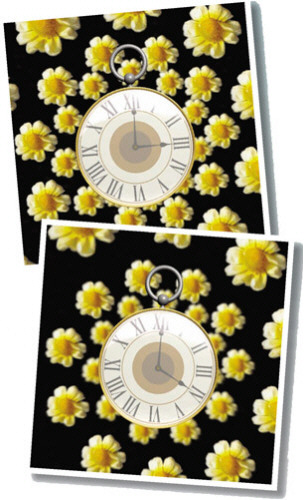
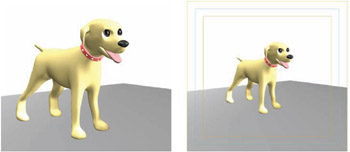
Cameras go hand-in-hand with rendering. Sometimes you just need to change a few camera parameters to get an illusion of depth.
Rendering is the easiest task in 3ds Max, in most cases just a matter of a few clicks. In this chapter, we ll look at ways to enhance your rendering experience while keeping the process fast and easy.
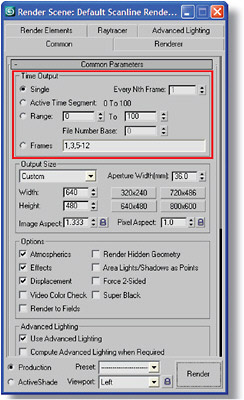
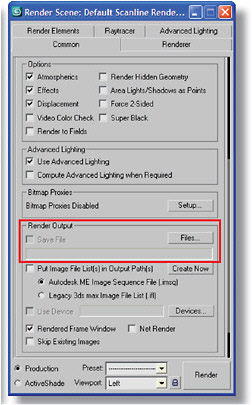
The render scene dialog is your main resource for rendering settings. Choose Render menu > Render Scene to open the dialog.
While this dialog contains numerous parameters, there are a few that are crucial to creating the type of rendering you want.
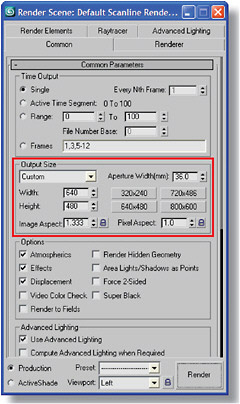
| Hot Tip | To render an image for print at the right resolution, multiply the final size by the desired dots-per-inch (dpi) to determine the resolution. For example, if the final image will be... |