Exercise Workbook for Advanced AutoCAD 2007
Note:
This lesson should be used to determine whether or not you are ready for this level of instruction. If you have difficulty creating Exercises 1A, B and C, you should consider starting with the Exercise Workbook for Beginning AutoCAD 2007 .
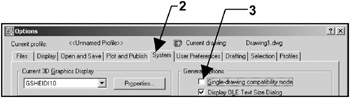
AutoCAD has an option that allows you to have one or more drawings open at the same time. This option is Single-drawing compatibility mode . If you have Single-drawing compatibility mode ON, only one drawing can be open on the screen. If you have Single-drawing compatibility mode OFF, multiple drawings may be open on the screen.
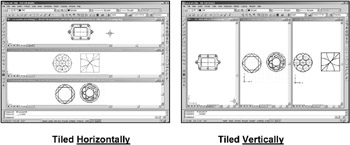
You may view the multiple drawings side by side (tiled) or as a full screen (cascade).
See examples of each on the next page.
Select TOOLS / OPTIONS
Select the SYSTEM tab.
Remove the check mark from Single-drawing compatibility mode box.
Select APPLY and the OK button.

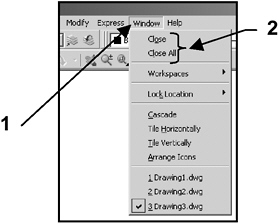
Select the Window pulldown menu.
Select Close to close the active drawing or Close All to close all the drawings at once. 1

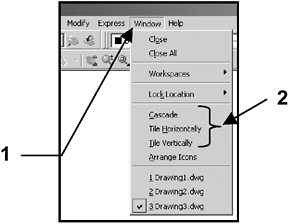
Select the WINDOW pulldown menu.
Select Cascade, Tile Horizontally or Tile Vertically.

(Examples on next page)
Example of TILED

Example of CASCADE
To view one of the multiple drawings, use one of...