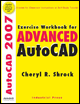
Exercise Workbook for Advanced AutoCAD 2007
Lesson 2

LEARNING OBJECTIVES

After completing this lesson, you will be able to:

  1. Customizing your Workspace.

  2. Restore AutoCAD default workspace.

  3. Export and Import a workspace.

  4. Create a new Toolbar.

  5. Delete a Toolbar command.

  6. Add or delete a command on a pull-down menu.

  7. Customize the Status Bar.

  8. Import and Export a Profile

  9. Understand the Redo command.

CUSTOMIZING YOUR WORKSPACE

At this stage of your AutoCAD education you are probably not too interested in customizing AutoCAD. But I would like to at least introduce you to the new Custom User Interface to familiarize you with a few of the customizing options that are available. It is relatively easy to use and sometimes helpful. If you find it intriguing you may explore further using the AutoCAD Help system discussed in Lesson 1 in the Beginning workbook.

Note

Note: Those of you that are familiar with the customizing process of previous AutoCAD versions should note that the Custom User Interface file structure replaces the MNU/MNS file structure. If you are someone that enjoys customizing AutoCAD, you will find this tool will make customizing easier because all customizing is done within AutoCAD. You do not have to venture outside of AutoCAD.

Start by opening the Customize User Interface dialog box using one of the following:

  • TYPE = CUI

  • PULLDOWN = TOOLS / CUSTOMIZE / INTERFACE or VIEW / TOOLBARS

  • TOOLBAR = NONE

The following dialog box...

UNLIMITED FREE
ACCESS
TO THE WORLD'S BEST IDEAS

SUBMIT
Already a GlobalSpec user? Log in.

This is embarrasing...

An error occurred while processing the form. Please try again in a few minutes.

Customize Your GlobalSpec Experience

Category: Additive Manufacturing Software
Finish!
Privacy Policy

This is embarrasing...

An error occurred while processing the form. Please try again in a few minutes.