Exercise Workbook for Advanced AutoCAD 2007
After completing this lesson, you will be able to:
Navigate in the DesignCenter Palette
Open a drawing from the DesignCenter Palette
Insert a block from the DesignCenter Palette
Drag and drop hatch patterns.
Drag and drop Symbols from the Internet
Open the Tool Palette Window
Control Tool Palette Properties
Create a Tool Palette
Export and Import a Tool Palette
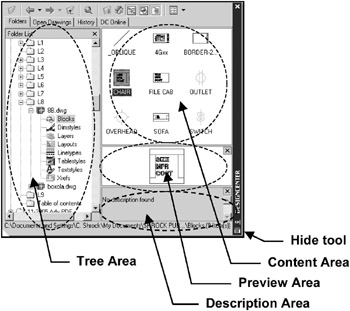
The AutoCAD DesignCenter allows you to find, preview and drag and drop Blocks, Dimstyles, Textstyles, Layers, Layouts and more, from the DesignCenter to an open drawing. You can actually get into a previously saved drawing file and copy any of the items listed above into an open drawing.
To open the DesignCenter palette select one of the following:
TYPE = DC or Ctrl + 2
PULLDOWN = TOOLS / DesignCenter
TOOLBAR = STANDARD ![]()

How to:
Resizing You can change the width and height. Rest the cursor on an edge until the pointer changes to a double ended arrow. Click and drag to desired size.
Dock Click the title bar, then drag it to either side of the drawing window.
Hide You can hide the DesignCenter palette using the Auto-hide option. Click on the properties button
and select Auto-hide . When Auto-hide is ON, the palette is hidden, only the title bar is visible. The palette reappears when you place the cursor on the title bar.