Exercise Workbook for Advanced AutoCAD 2007
Lesson 7

LEARNING OBJECTIVES

After completing this lesson, you will be able to:

  1. Cut and Paste from one document to another.

  2. Dimension an Isometric object.

  3. Use Grips

  4. Create Isometric Text.

COPY, CUT AND PASTE

You can t use the Copy command to copy objects from one drawing to another drawing. You must use EDIT / COPY and EDIT / PASTE.

AutoCAD allows you to select objects in a drawing (EDIT / COPY) and then copy those objects to another drawing (EDIT / PASTE). Or you may remove the objects from the original drawing (EDIT / CUT) and then copy (EDIT / PASTE) them to another drawing.

You can also copy, cut and paste between AutoCAD and other documents such as Microsoft Word, Excel or any other Windows application.

Copy, Cut and Paste between AutoCAD drawings. (Simplified)

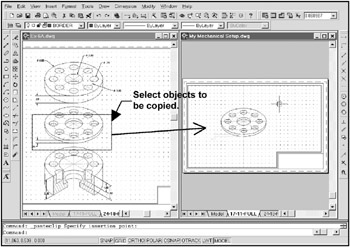
  1. Open two AutoCAD drawings and Tile Vertically. (Example below)

  2. Activate the drawing that contains the objects you want to copy. (Click in the drawing area)

  3. Select the COPY or CUT command using one of the following:

    TYPE = Copyclip

    TYPE = Cutclip

    TYPE = Pasteclip

    PULLDOWN = EDIT / COPY

    PULLDOWN = EDIT / CUT

    PULLDOWN = EDIT/PASTE

    TOOLBAR = STANDARD

    TOOLBAR = STANDARD

    TOOLBAR = STANDARD

  4. Select the objects to copy then . (Use any AutoCAD selection methods) If you selected CUT,...

UNLIMITED FREE
ACCESS
TO THE WORLD'S BEST IDEAS

SUBMIT
Already a GlobalSpec user? Log in.

This is embarrasing...

An error occurred while processing the form. Please try again in a few minutes.

Customize Your GlobalSpec Experience

Category: Drawing Software
Finish!
Privacy Policy

This is embarrasing...

An error occurred while processing the form. Please try again in a few minutes.