Exercise Workbook for Advanced AutoCAD 2007
Lesson 4

LEARNING OBJECTIVES

After completing this lesson, you will be able to:

  1. Create a Feet and inches Setup drawing.

  2. Create another Border for 24 x 18

  3. Create Page Setups for 1/4 = 1 and 1/8 = 1

EXERCISE 4A: CREATE AN MASTER FEET-INCHES SETUP DRAWING

The following instructions will guide you through creating a Master feet-inches setup drawing. You will follow the same steps you did in Lesson 3 with a few additional scaling issues.

NEW SETTINGS

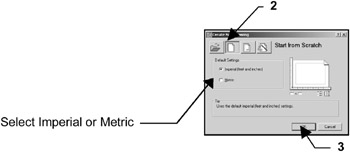
  1. Begin your drawing without a template as follows:

    1. Select FILE / NEW .

    2. Select START FROM SCRATCH Box.

    3. Select " OK".

    4. Your screen should be blank, no grids and the current layer is 0.

  2. Set drawing specifications as follows:

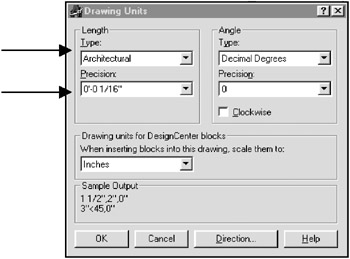
    1. Select FORMAT / UNITS

      1. Change the Type and Precision then select OK

    2. Select FORMAT / DRAWING LIMITS

      1. Lower left corner = 0 -0 , 0 -0

      2. Upper right corner = 24, 18. (Notice this is inches, not feet.)

      3. Use "VIEW / ZOOM / ALL" to generate the new limits.

    3. Select TOOLS / DRAFTING SETTINGS / SNAP and GRID tab.

      1. Change the settings as shown below and then select OK.

      2. Set your grids to ON to display the paper size.

    4. Set "PICK BOX" size (your preference).

      Use Tools / Options / Selection tab.

NEW LAYERS

  1. Create new layers.

    1. Load linetype DASHED2 and PHANTOM

UNLIMITED FREE
ACCESS
TO THE WORLD'S BEST IDEAS

SUBMIT
Already a GlobalSpec user? Log in.

This is embarrasing...

An error occurred while processing the form. Please try again in a few minutes.

Customize Your GlobalSpec Experience

Category: Additive Manufacturing Software
Finish!
Privacy Policy

This is embarrasing...

An error occurred while processing the form. Please try again in a few minutes.