Exercise Workbook for Advanced AutoCAD 2007
Appendices

Chapter List

Appendix A: Add a Printer / Plotter
Appendix B: Printing a Quick Draft On a Letter Size Printer.
Appendix C: Assign Lineweights to Colors.
Appendix D: Conversion Tables
Appendix E: Drawing Scales

The following are step by step instructions on how to configure AutoCAD for your printer or plotter. These instructions assume you are a single system user. If you are networked or need more detailed information, please refer to your AutoCAD users guide.

Note: You can configure AutoCAD for multiple printers. I suggest that you configure the plotter shown below to match the exercises in this workbook.

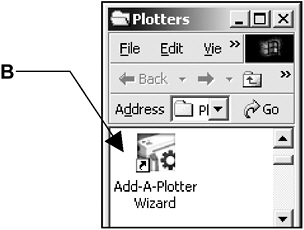
  1. Select File / Plotter Manager

  2. Select Add-a-Plotter Wizard

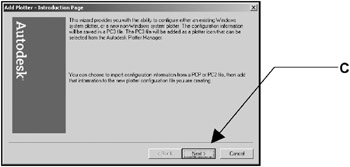
  3. Select the Next button.

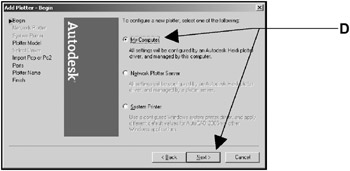
  4. Select My Computer then Next.

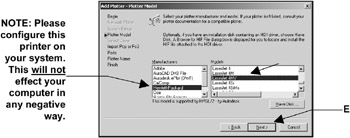
  5. Select the Manufacturer and the specific Model desired then N ext.

    (If you have a disk with the specific driver information, put the disk in the disk drive and select Have disk button then follow instructions.)

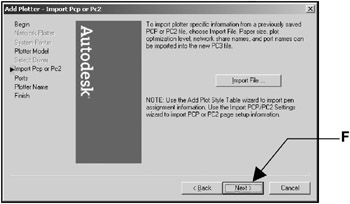
  6. Select the Next box.

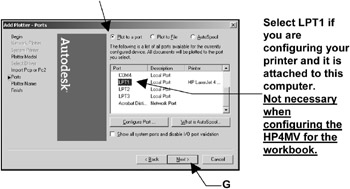
  7. Select Plot to a port .

    Then select Next .

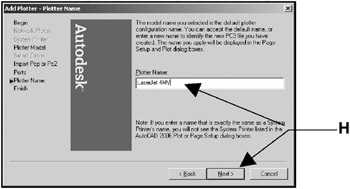
  8. The Printer name, that you previously selected, should appear.

    Then select Next

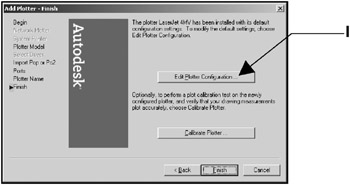
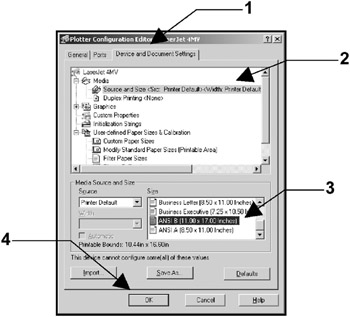
  9. Select the Edit Plotter Configuration box.

  10. Select:

    1. Device and Document Settings tab.

    2. Media: Source and Size

    3. Size: Ansi B (11 X 17 inches)

    4. OK box.

  1. Select Finish .

UNLIMITED FREE
ACCESS
TO THE WORLD'S BEST IDEAS

SUBMIT
Already a GlobalSpec user? Log in.

This is embarrasing...

An error occurred while processing the form. Please try again in a few minutes.

Customize Your GlobalSpec Experience

Category: Computer Cables
Finish!
Privacy Policy

This is embarrasing...

An error occurred while processing the form. Please try again in a few minutes.