Exercise Workbook for Advanced AutoCAD 2007
LET S REVIEW HOW TO INSERT A BLOCK

Now we need to review How to insert the Block .

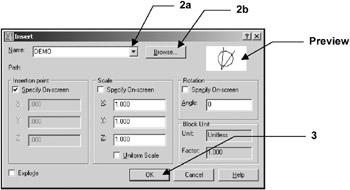
  1. Select the INSERT command using one of the following:

    • TYPE = DDINSERT

    • PULLDOWN = INSERT / BLOCK

    • TOOLBAR =DRAW

    The INSERT dialog box will appear.

  2. Select the BLOCK name.

    1. If the block is already in the drawing that is open on the screen, you may select the block from the drop down list shown above

    2. If you want to insert an entire drawing, select the Browse button to locate the drawing file.

  3. Select the OK button.

    This returns you to the drawing and the selected block should be attached to the cursor.

  4. Select the insertion location for the block by pressing the left mouse button or typing coordinates.

    Command: _insert

    Specify insertion point or [Scale/X/Y/Z/Rotate/PScale/PX/PY/PZ/PRotate]:

NOTE: If you want to scale or rotate the block before you actually place the block, press the right hand mouse button and you may select an option from the menu or select an option from the command line menu shown above.

Remember you may also preset the insertion point, scale or rotation.

PRESETTING THE INSERTION POINT, SCALE OR ROTATION

You may preset the Insertion point, Scale or Rotation in the INSERT box instead of at the command line.

  1. Remove the check mark from any of the Specify On-screen boxes.

  2. Fill in the appropriate information describe...

UNLIMITED FREE
ACCESS
TO THE WORLD'S BEST IDEAS

SUBMIT
Already a GlobalSpec user? Log in.

This is embarrasing...

An error occurred while processing the form. Please try again in a few minutes.

Customize Your GlobalSpec Experience

Category: Bias Tees
Finish!
Privacy Policy

This is embarrasing...

An error occurred while processing the form. Please try again in a few minutes.