Learning Mastercam X2 Mill 2D Step by Step
After completing this chapter you will be able to:
Explain what the operations manager is.
State the four parts contained in the Properties folder
State the four parts contained in the Operation folder
Know what effect associativity has on edited machining operations
Specify how to use the operations manager to perform the following functions on operations: create new, move, copy and delete.
Understand how to use the operations manager to edit existing toolpaths
Explain how to display and print the Operations Manager listing as a Doc file.
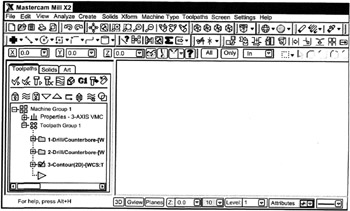
The Operations Manager was introduced in Chapters 5 and 6 as a means for selecting toolpaths to be back plotted or verified. It was also used to edit drill tool paths and to direct Mastercam to generate a word address part program for a set of tool paths. In this Chapter we will take a closer look at the Toolpath Manager contained within the Operations Manager and consider more of its powerful editing features.

The root folder in the Toolpath Manager is Machine Group. This is created when the operator selects a machine type from the Machine Type drop down menu. The machine type defines what type of machine is to be used for the job and the file used for postprocessing. After Machine Group is created, Mastercam automatically generates all the sub-folders named: Machining Properties, Toolpath Group, Operation, Operation Insert Arrow.