Learning Mastercam X2 Mill 2D Step by Step

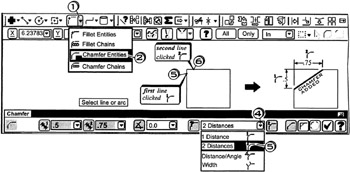
On the CD A chamfer is a beveled edge machined to break a sharp corner between two intersecting line or arc entities. The Mastercam X2 fillet ribbon bar provides the operator with several control settings. The operator selects the chamfer style(1 Distance, 2 Distances, Distance/Angle or Width) and inputs the values appropriate to the style selected. The operator specifies whether Mastercam is to trim the two entities to their point of intersection with the chamfer. The default setting has trimming turned on. The auto-preview feature also works the same way as described for previewing fillets.

A chamfer is created. The operator specifies the first and second chamfer distances then clicks the first and second lines or arcs to be chamfered.

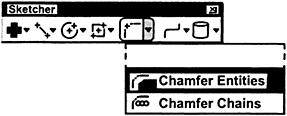
Click
the down arrow ![]()
Click
![]()
Click
the down arrow ![]()
Click
the 2 Distances style ![]()
Tap the
key for Dist 1; enter ![]()
into Dist 2; enter ![]()
accept the default setting: Trim On ![]()
Select line or arc
Click
the first line entity
Select line or arc
Click
the second line entity
Tap
for function cancel