Learning Mastercam X2 Mill 2D Step by Step

After completing this chapter you will be able to:
Know how to use File Tracking to check for the latest version of a part file..
Know how to use tracking filters to build a custom list of files to track.
Explain the terms Original file and Incoming file.
Understand how to use the Change Recognition function to determine changes between the Original and Incoming files.
Know the process of updating the toolpaths for any operations that are affected by geometry changes in the Incoming file.
Many parts in either the design or production cycle will undergo revisions and changes. Mastercam X2 features a File tracking function that can check if a newer version of the current part file exists and display the result. In this way, the operator is can be sure that the part file being opened contains all the latest revisions and changes.
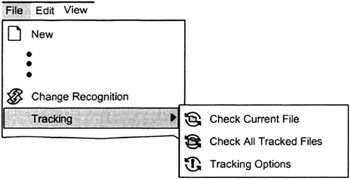
The File tracking fly out menu is accessible from the File menu bar.

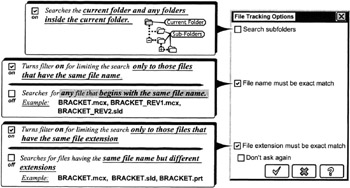
Opens the File Tracking Options dialog box and Directs Mastercam X2 to search for newer versions of the currently loaded part file.

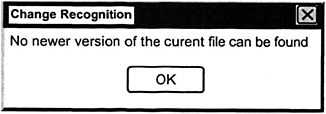
Mastercam X2 displays the message

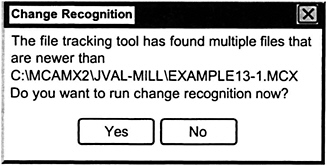
Mastercam X2 displays the message

Click the
button to launch
Mastercam s
function
Opens the File Tracking dialog box which allows the operator to create a list of files to...