Learning Mastercam X2 Mill 2D Step by Step

After completing this chapter you will be able to:
Understand the transform toolpaths function.
Use the transform toolpaths function to translate existing toolpaths.
Know how to use the transform toolpaths function to rotate toolpaths.
Use the transform toolpaths function to mirror existing toolpaths.
Explain how to convert a transform toolpath into new geometry and operations.
Existing toolpaths can be translated, rotated or mirrored via the Transform Toolpaths function. When a toolpath is edited by using Transform all the other information in the operation associated with the toolpath is also updated when Regenerate Selected Operations
is executed. Thus associativity is maintained.
It should be noted that a transform toolpath is not an independent toolpath but is linked to the original from which it was copied. If the original is edited in any way via the chain manager all the transform copies will automatically be edited as well.
Many parts contain repetitious features that appear in grid or mirror patterns. Situations also arise where a set of identical parts or left and right hand versions of a part are to be machined in one setup. In these and many other cases Transform toolpath can be used to cut down on CAD geometry creation and dramatically simplify the job of chaining toolpaths.
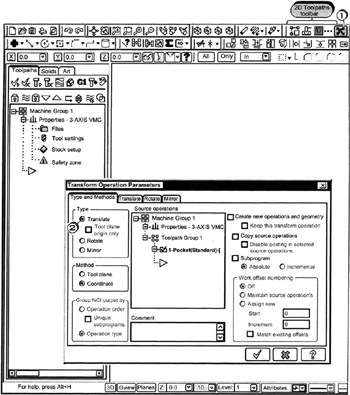
The Transform Operations Parameters dialog box can be entered as shown below:

Click
the Transform Toolpath button
contained...