Learning Mastercam X2 Mill 2D Step by Step
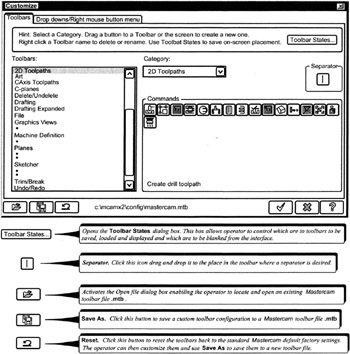
Mastercam X2 features the Customize dialog box for creating customized tool bars, drop down menus and the graphics right click menu. Customization enables the operator to design the Mastercam X2 interface to work optimally for specific types of applications or user preferences.
The settings for toolbars and right-click menus are stored in Mastercam X2 files with, the extension ![]()

the Customize dialog box enables the operator to execute the following customizing functions with respect to toolbars:
Add or remove toolbar buttons
Create new toolbars
Rename toolbars
Delete toolbars
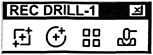
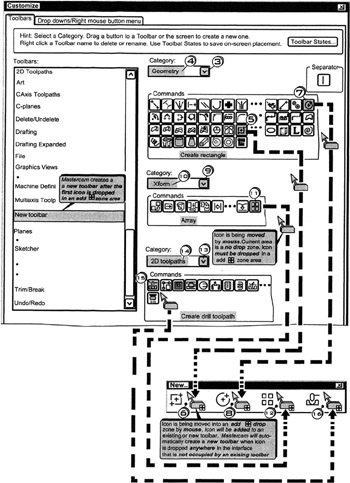
Create a custom toolbar menu with buttons for generating rectangular plates with holes arrayed in a rectangular pattern. Include the drill cycle button in the toolbar. Name the new toolbar REC DRILL-1


Left Click
the
function
Left Click
![]()

Click
the Category down button ![]()
Click
![]()
Click
on the Rectangle icon
and keeping the left mouse button depressed drag the mouse to the location outside the dialog box and Release at
Click
on the Circle icon
and keeping the left mouse button depressed drag the mouse to the location inside the new toolbar menu and Release at ![]()
Click
the Category down button ![]()
Click
![]()
Click
on the Array...