Adobe Photoshop Elements 4.0 A to Z: Tools and Features Illustrated Ready Reference
Menu: Filters > Brush Strokes > Accented Edges
Shortcut: Ctrl F
OS: Mac, Windows
Version: 1, 2, 3, 4
See also: Ink Outlines filter

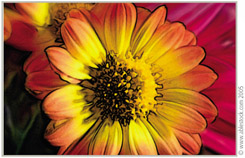
The Accented Edges filter searches out the edges within a picture and then highlights them with a line.
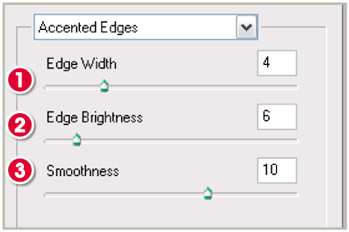
The size of the line is controlled by the Edge Width slider (1) in the filter's dialog. The dark or lightness of the line is determined by the Edge Brightness slider (2). A high value produces a lightly colored edge that appears like chalk and a low value, like the one used in the illustration here, creates an ink-like outline.
The Smoothness slider (3) is used to even out the rough jagged edges of the line.

Menu: Window > Layers (to show the Layers palette)
Shortcut: -
OS: Mac, Windows
Version: 1, 2, 3, 4
See also: Layers palette, Layers

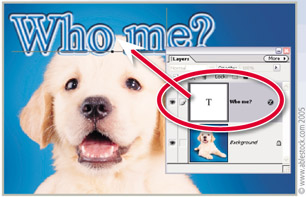
The Layers feature is great for creating pictures that are made up of a variety of parts. Each section is stored on its own layer and can be easily altered independent of the rest of the photograph.
But the way in which the feature works means that it is only possible to edit or enhance one layer at a time. You must select or activate the layer first before applying the changes. To select the layer click on its thumbnail in the Layers palette. At this point the layer will change to a different color from the rest...