Adobe Photoshop Elements 4.0 A to Z: Tools and Features Illustrated Ready Reference
V: Vanishing Point Tool Vivid Light Blending Mode

Vanishing Point Tool

Menu: -

Shortcut: V (in Photomerge)

OS: Mac, Windows

Version: 1, 2, 3, 4

See also: Photomerge

When editing a panorama in Photomerge with the Perspective option selected, you can change the vanishing point from the default middle picture to any of the other source photos in the composition.

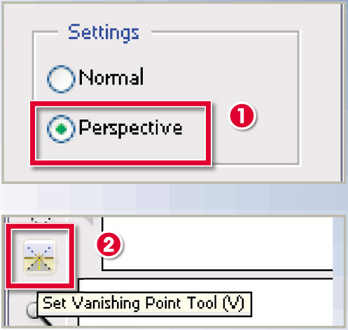
With a Photomerge composition open select the Perspective option from the settings on the right of the dialog (1). Next select the Vanishing Point tool (2) and click onto the picture in the composition to use as the new vanishing point. This photo will now be used as the basis for perspective in the panorama.

There can only be one vanishing point in any Photomerge composition and the Vanishing Point tool only works with compositions that cover less than 120 of the view.

Variations Command

Menu: Enhance > Variations

Shortcut: -

OS: Mac, Windows

Version: 1

See also: Color Variations (vers 2.0, 3.0)

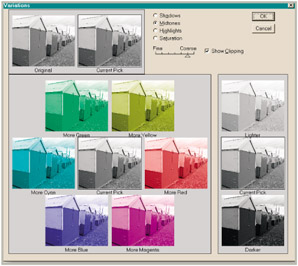
This Variations feature first appeared in version 1.0 of Elements and now has become Color Variations.

It was based on a color wheel, which was made up of the primary colors red, green and blue, and their complementary colors cyan, magenta and yellow. Increasing the amount of one color in an image automatically decreases its complementary. Put simply, increasing red will decrease cyan, increasing green will reduce magenta and increasing blue will lessen yellow.

The feature is primarily used for reducing color casts in digital photos.

VCD with...

UNLIMITED FREE
ACCESS
TO THE WORLD'S BEST IDEAS

SUBMIT
Already a GlobalSpec user? Log in.

This is embarrasing...

An error occurred while processing the form. Please try again in a few minutes.

Customize Your GlobalSpec Experience

Category: Ink and Toner Cartridges
Finish!
Privacy Policy

This is embarrasing...

An error occurred while processing the form. Please try again in a few minutes.