Adobe Photoshop Elements 4.0 A to Z: Tools and Features Illustrated Ready Reference
G: Gaussian Blur Filter Grow, Selection

Gaussian Blur Filter

Menu: Editor: Filter > Blur > Gaussian Blur

Shortcut: -

OS: Mac, Windows

Version: 1, 2, 3, 4

See also: Blur

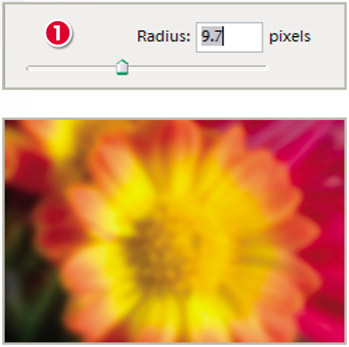
The Gaussian Blur filter, as one of the group of Blur filters, softens the look of photos, producing a blur effect that is similar to out of focus pictures.

This filter is often used to blur the background of photographs, producing an artificial shallow Depth of Field effect. To reproduce these results select the area to be blurred first and then apply the filter.

Unlike the Blur and Blur More options, the Gaussian Blur filter provides a slider control that governs the strength of the effect (1).

Get Photos

Menu: Photo Browser: File > Get Photos

Shortcut: Shft Ctrl G

OS: Windows

Version: 3, 4

See also: Open

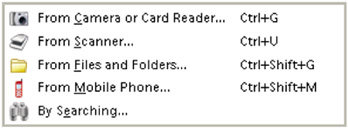
The Organizer, in Photo Browser view, creates the thumbnails that it displays during the process of adding your photographs to a collection. Adding your photos to a collection starts with the Get Photos command and includes a range of options for the source of these pictures.

To start your first collection simply select the View and Organize option from the Welcome screen and then proceed to the File > Get Photos menu option. Select one of the listed sources of pictures provided and follow the steps and prompts in the dialogs that follow.

Get Photo sources:

Camera or Card Reader

This will probably be the most frequently used route for your images to enter...

UNLIMITED FREE
ACCESS
TO THE WORLD'S BEST IDEAS

SUBMIT
Already a GlobalSpec user? Log in.

This is embarrasing...

An error occurred while processing the form. Please try again in a few minutes.

Customize Your GlobalSpec Experience

Category: Professional Photography and Videography Services
Finish!
Privacy Policy

This is embarrasing...

An error occurred while processing the form. Please try again in a few minutes.