Adobe Photoshop Elements 4.0 A to Z: Tools and Features Illustrated Ready Reference
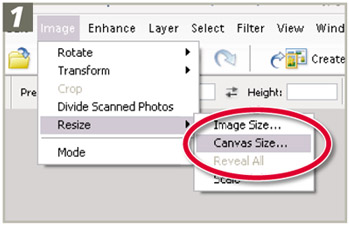
Menu: Editor: Image > Resize > Canvas Size
Shortcut: -
OS: Mac, Windows
Version: 1, 2, 3, 4
See also: Image Size

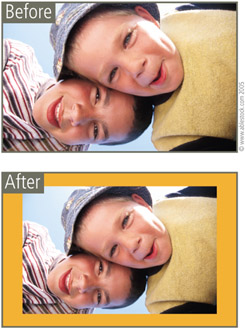
Altering the settings in the Canvas Size dialog changes the dimensions of the background the image is sitting upon. Larger dimensions than the picture result in more space around the image. Smaller dimensions crop the image.
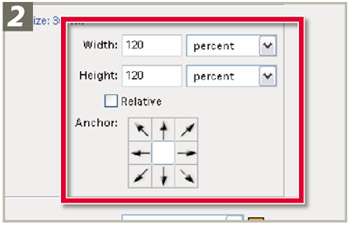
To change the canvas size, select Canvas Size from the Resize selection of the Image menu and alter the settings in the New Size section of the dialog. You can control the location of the new space in relation to the original image by clicking one of the sections in the Anchor diagram. Leaving the default setting here will mean that the canvas change will be spread evenly around the image.
| Remember | Keep in mind that increasing the canvas size, or adding canvas (which is sometimes called 'adding out') will also increase the size that the picture can be printed. Whereas adding extra layers to a picture (' adding up') does not increase the printed size. |
Step-by-step instructions for changing canvas size are on the next page.
With the picture already open in the Standard Editor workspace select Image > Resize > Canvas Size.
In the Canvas Size dialog add in the new values for the width and height of the canvas. When making the canvas larger click and drag the white square in the 3 3 grid to determine where the new canvas area...