Adobe Photoshop Elements 4.0 A to Z: Tools and Features Illustrated Ready Reference
Menu: Photo Browser: Edit > Add Caption to Selected Items
Shortcut: Ctrl Shft T
OS: Windows
Version: 4
See also: Captions

Captions are extra pieces of descriptive text that are stored with the photo and can be used by the Find command to help locate individual flies. In addition, the captions you add to images can be utilized instead of file names as picture titles or descriptions in many Elements' Photo Creations projects.
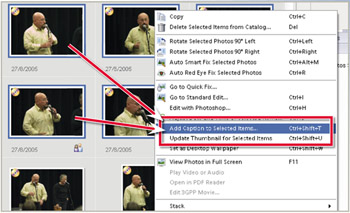
In version 4.0 of the program it is possible to add the same caption to multiple photos in one easy step. Once the photos are multi selected in the Photo Browser workspace choose the Add Caption to Selected Items from the right-click menu.
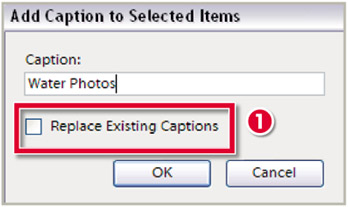
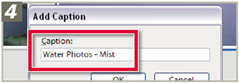
Add the caption text in the dialog that is displayed. Click the OK button to apply the caption to the selected photos.
The Add Caption to Selected Items dialog also contains the option to Replace Existing Captions (1) with the newly added text. Leave this option unchecked if you wish to add the new caption to those that are already associated with individual photos.

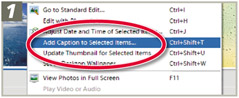
Multi-select images in the Photo Browser workspace and then choose the Add Caption to Selected Items option from the right-click menu.
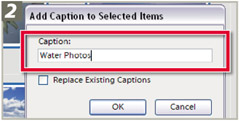
Type the new caption into the dialog that pops up leaving the Replace Existing Captions option unchecked. Click OK.
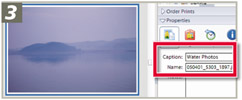
To view the newly added caption select Window > Properties to display the Properties pane.
To add specific captions to individual...