Adobe Photoshop Elements 4.0 A to Z: Tools and Features Illustrated Ready Reference
B: Background Color Burn Tool

Background Color

Menu: -

Shortcut: -

OS: Mac, Windows

Version: 1, 2, 3, 4

See also: Foreground color, Eyedropper

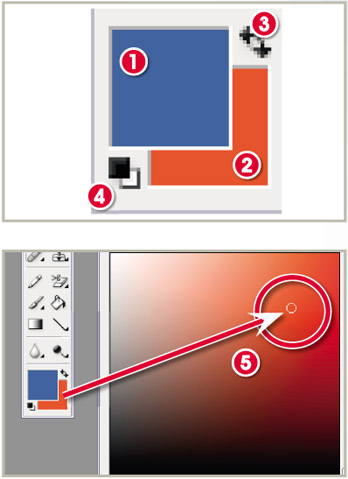
Photoshop Elements bases many of its drawing, painting and filter effects on two colors - the foreground and background colors. The currently selected foreground and background colors are shown at the bottom of the toolbox as two colored swatches. The topmost swatch (1) represents the foreground color, the one beneath (2) the hue for the background.

The default for these colors is black and white but it is possible to customize the selections at any time. Click the swatch and then select a new color from the Color Picker Window (5).

To switch foreground and background colors click the double-headed curved arrow at the top right (3) and to restore the default (black and white) click the mini swatches bottom left (4).

Background Eraser Tool

Menu: -

Shortcut: E

OS: Mac,Windows

Version: 1, 2, 3, 4

See also: Eraser

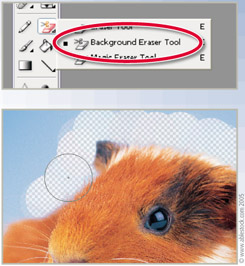
The Background Eraser is used to delete pixels around the edge of an object. This tool is very useful for extracting objects from their surrounds. The tool pointer is made of two parts - a circle and a cross hair. The circle size is based on the brush size.

To use the tool, the cross hair is positioned and dragged across the area to be erased, whilst at the same time the circle's edge overlaps the edge of the object to be kept. The...

UNLIMITED FREE
ACCESS
TO THE WORLD'S BEST IDEAS

SUBMIT
Already a GlobalSpec user? Log in.

This is embarrasing...

An error occurred while processing the form. Please try again in a few minutes.

Customize Your GlobalSpec Experience

Category: Color Swatches and Reference Systems
Finish!
Privacy Policy

This is embarrasing...

An error occurred while processing the form. Please try again in a few minutes.