Adobe Photoshop Elements 4.0 A to Z: Tools and Features Illustrated Ready Reference
Menu: -
Shortcut: -
OS: Windows
Version: 3, 4
See also: -

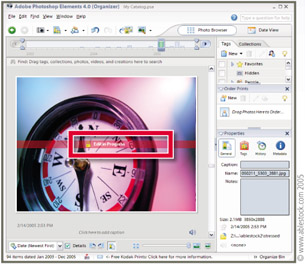
Pictures displayed in the Photo Browser workspace can be selected and transferred to the Quick Fix or Standard editing workspaces by selecting the thumbnail and then choosing the 'Go to ' option from the right-click pop-up menu.
Once the photo is opened in either editing space an Edit in Progress warning is displayed on the thumbnail in the Photo Browser. This not only serves to remind the user that the file is currently open in the editing space but also locks the file so that no changes can be made in the Browser space. The image can still be used in a Photo Creation even when it is being edited.
When the photo is closed and no longer displayed in either editing space the warning is removed from the thumbnail.
Menu: Editor:Window > Styles and Effects
Shortcut: -
OS: Mac, Windows
Version: 3, 4
See also: Scale Effects, Layer Styles Hide All Effects, Clear Effects


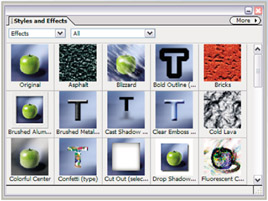
Early on in the digital imaging revolution, users started to place visual effects like drop shadows or glowing edges on parts of their pictures.
With the release of packages like Elements, these types of effects have become far more sophisticated and built-in features of the program. Now, it is possible to apply an effect like a'drop shadow', or a bold outline, to the contents of a layer with the click of a single...