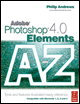
Adobe Photoshop Elements 4.0 A to Z: Tools and Features Illustrated Ready Reference
M: Magic Eraser Multi-Page PDF to PSD

Magic Eraser Tool

Menu: -

Shortcut: E

OS: Mac, Windows

Version: 1, 2, 3, 4,

See also: Eraser, Background Eraser Magic Extractor

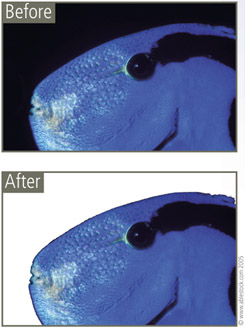
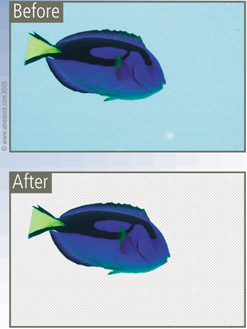
The Magic Eraser selects and then erases pixels of similar tone and color. The tool is great for removing unwanted backgrounds when making composite or montage pictures.

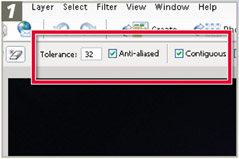
The Tolerance setting determines how alike the pixels need to be before they are erased. High settings will include more pixels of varying shades and colors.

Select the Contiguous option to force the tool to select pixels that are adjacent to each other and choose Use All Layers if you want to sample the color to be erased from a mixture of all visible layers.

The Magic Extractor feature, first introduced in Photoshop Elements 4.0, also performs and admirable job of removing backgrounds from photos.

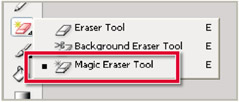
Select the tool from the tool box. Click the side arrow to reveal hidden tools if the standard eraser is showing. Set the Tolerance, Contiguous and Use All Layers settings.

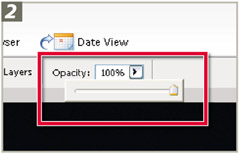
Select the Opacity value: 100% removes all pixels; lower values make the erased area semi-transparent. Click on the layer part you wish to erase.

Magic Extractor

Menu: -

Shortcut: -

OS: Windows

Verslon: 4

See also: Magic Selection Brush,

Magic Eraser

The Magic Extractor feature quickly removes the background of a picture whilst retaining the subject in the foreground.

This new addition is an extension of the technology that makes the Magic Selection Brush possible. Just...

UNLIMITED FREE
ACCESS
TO THE WORLD'S BEST IDEAS

SUBMIT
Already a GlobalSpec user? Log in.

This is embarrasing...

An error occurred while processing the form. Please try again in a few minutes.

Customize Your GlobalSpec Experience

Category: Industrial Brushes
Finish!
Privacy Policy

This is embarrasing...

An error occurred while processing the form. Please try again in a few minutes.