Photoshop CS A to Z: The Essential Visual Reference Guide
Designed to present the program in a visual way and in a logical order, this helpful, concise guide presents handy tips and useful quick keys that make Photoshop CS work for you.
 TABLE OF CONTENTS
 (See Blending modes )
| MENU | EDIT ? |
| DEFINE BRUSH PRESET |
A useful feature hidden away within Photoshop's brush edit menu is the Define Brush mode. Selecting part of any image, followed by Edit ? Define Brush Preset, converts the selection into a preset that can then be used as a brush shape. The new brushes appear in the Brush palette and can be adjusted in size like any other brush. Copy a whole object and you can paint like you would using Picture Tubes in Paint Shop Pro.
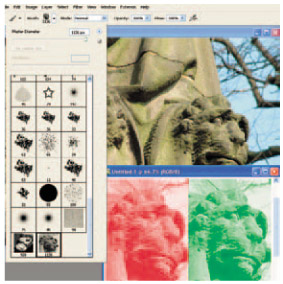
You can also create your own simple graphics and use them as a brush preset. (See Brushes )
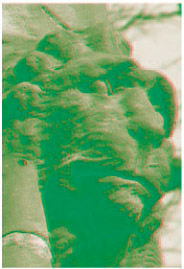
Use the brush to simulate a 3D photo. The lion statue was selected and turned into a brush preset. Then red was selected and a single click made on a fresh canvas using the lion brush creates a red lion. Repeat with green but slightly offset so it's out of register with the original red lion. The picture looks bad, but when you now view through red/green 3D glasses you'll see a 3D shape.
| MENU | EDIT ? |
| DEFINE PATTERN |
This is similar to define brush, but requires you to make a rectangular selection and then save this as a pattern using the Edit ?Define pattern option. Your saved pattern appears in the pattern group of presets and can then be used to paint a stitched pattern on a canvas using...