Photoshop CS A to Z: The Essential Visual Reference Guide

Designed to present the program in a visual way and in a logical order, this helpful, concise guide presents handy tips and useful quick keys that make Photoshop CS work for you.
 TABLE OF CONTENTS
 | MENU | VIEW ? |
| GAMUT WARNING | |
| QUICK KEYS | SHIFT+CTRL+Y |
The range of colors a computer monitor can display is known as the gamut and the monitor's gamut has a larger range of colors than an inkjet printer can often output. If you don't watch out the vivid colors you've been editing will appear looking dull and lifeless. The Gamut warning's job is to prevent disappointment when you work in RGB mode. It does so by highlighting all the pixels that are out of gamut so you can modify the color before printing. Go to File ?Preferences ?Transparency & Gamut to adjust the color used as a warning.
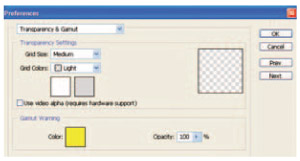
A small exclamation mark also appears above the color in the Color Picker and Color palette when a color is out of the printer's gamut. You should adjust the saturation to reduce the areas indicated in the warning to a minimum using the Sponge tool or saturation control. (See Saturation and Sponge tool )


The rich red colors of the group members' tops are beyond the gamut of a printer and when the warning is set, in this case to display out of gamut colors as yellow, the picture is washed in yellow (left).
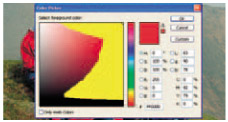
Pressing the keys Shift+Ctrl+Y while viewing the color picker will also show you the out of gamut range of color using the preselected color, in our case yellow. Move the Eyedropper outside this range to ensure a safe printable color.