Photoshop CS A to Z: The Essential Visual Reference Guide
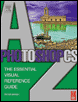
Designed to present the program in a visual way and in a logical order, this helpful, concise guide presents handy tips and useful quick keys that make Photoshop CS work for you.
 TABLE OF CONTENTS
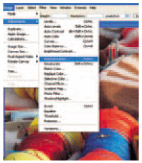
 | MENU | IMAGE ? |
| ADJUST ? | |
| HUE/SATURATION | |
| QUICK KEYS | CTRL+U |
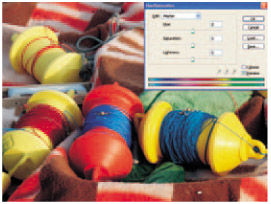
A slider control to adjust the colors in the image from 100 to +100. Dragging the slider to the left decreases the color in the image which is useful if you want a pastel effect or black & white.
Dragging to the right is the recipe for vivid colors go too far and the image will look unnatural.
The Sponge tool can also be used to apply the effect on smaller areas. (See Sponge tool )
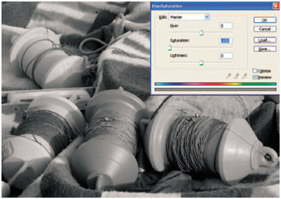
Saturation reduced to 100 knocks out all the color.
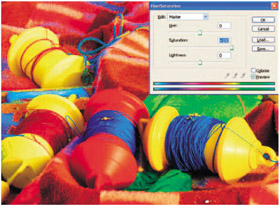
Increase to +100 and the colors become unreal.
| MENU | FILE ? |
| SAVE | |
| QUICK KEYS | CTRL+S |
When you click on the close box to close a photograph a message box will appear asking you if you want to Save, Cancel or Don't Save which may seem like a silly message if you've clicked on the picture to close it. This is your chance to save changes before closing. If you click Save, the latest version will be saved. If you click cancel you can go back and make a final adjustment that you may have forgot as you clicked on close. If you click on Don't Save it will save the file as the last saved version so any corrections or editing you have done will be lost. This is a useful option if you've opened a picture to try out an effect that you don't want to apply. (