Photoshop CS A to Z: The Essential Visual Reference Guide
Designed to present the program in a visual way and in a logical order, this helpful, concise guide presents handy tips and useful quick keys that make Photoshop CS work for you.
 TABLE OF CONTENTS
 | MENU | WINDOW ? |
| NAVIGATOR |
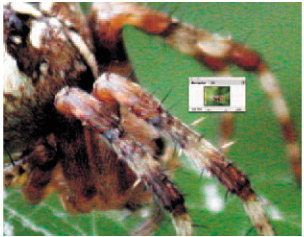
This palette shows a small preview of the image you're working on. The palette preview can be made smaller or larger by dragging the bottom right edge of the box. At the base of the preview window is a zoom scale that you adjust to make the main image magnify or reduce in size.
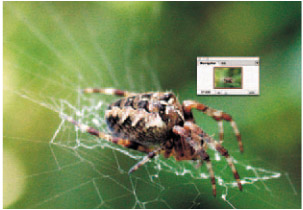
The area that shows on screen appears as a frame in the navigator's preview window which gets smaller as you increase magnification. The frame can be moved around the preview to select the area of the main image you want to work on. It's a really useful feature to help you fly around a photo, especially when you're working on a vastly enlarged version.
| MENU | FILE ? |
| NEW | |
| QUICK KEYS | CTRL+N |
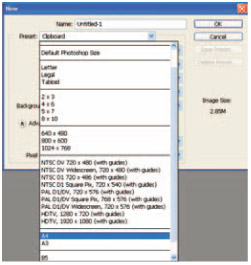
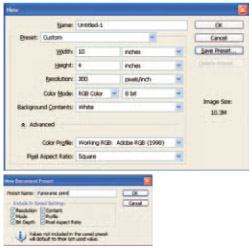
When opening a fresh file in Photoshop you follow the usual path that most programs offer, File>New. In Photoshop's past you then keyed in the measurements required and a blank canvas would appear.
Photoshop 7.0 added default options with a drop down list of popular preset sizes to save you keying in values. You can, of course, still set any size you want in the custom fields and Photoshop CS adds a save preset feature so favourites can be added to the drop down list. I've added the 10x4 in panoramic format.
| MENU | FILTER ? |
| NOISE... |
Four filters used to add grain or remove dust in an image to...