Exercise Workbook for Beginning AutoCAD 2005

Use this easy-to-follow, self-study guide to learn the basics of AutoCAD through step-by-step lessons and non-intimidating exercises.
 TABLE OF CONTENTS
 There are 6 options to create a circle. The default option is " Center, radius". (Probably because that is the most common method of creating a circle.) We will try the "Center, radius" option first.
Start the Circle command by using one of the following:
TYPING = C
PULLDOWN = DRAW / CIRCLE / Center, Radius
TOOLBAR = DRAW 
The following will appear on the command line:
Command: _circle Specify center point for circle or [3P/2P/Ttr (tan tan radius)]:
Locate the center point for the circle by moving the cursor to the desired location in the drawing area and press the left mouse button.
Now move the cursor away from the center point and you should see a circle forming.
When it is approximately the size desired, press the left mouse button, or if you want the exact size, type the radius and then press
| Note | To use one of the other methods described below, first select the Circle command, then press the right mouse button. A "short cut" menu will appear. Select the method desired by placing the cursor on the option and pressing the left mouse button. Or you can type 3P or 2P or T, then press |
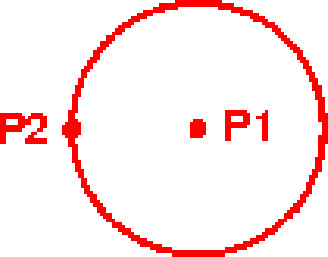
Center, Radius: (Default option)
Specify the center (P1) location.
Specify the Radius (P2).
Center, Diameter:
Specify the center (P1) location.
Select the Diameter option using the shortcut menu or type "D"
Specify...