Exercise Workbook for Beginning AutoCAD 2005

Use this easy-to-follow, self-study guide to learn the basics of AutoCAD through step-by-step lessons and non-intimidating exercises.
 TABLE OF CONTENTS
 The DIAMETER dimensioning command should be used when dimensioning circles and arcs of more than 180 degrees.
Center marks are automatically drawn as you use the diameter dimensioning command. If the circle already has a center mark or you do not want a center mark, set the center mark setting to NONE (Dimension Style / Lines and Arrows tab) before using Diameter dimensioning.
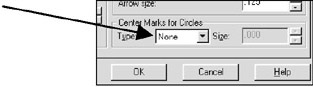
Select the Dimension / Diameter command or  .
.
Command: _dimdiameter
Select arc or circle: click on the arc or circle (P1). Location is not important; do not use object snap.
Dimension text = the diameter will be displayed here.
Specify dimension line location or [Mtext/Text/Angle]: place dimension text location (P2).
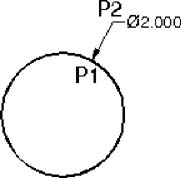
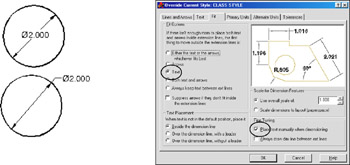
If you would like your Diameter Dimensions to appear as shown in the two examples above, you must change the " Fit Options" and " Fine tuning" in the Fit tab in your dimension
The RADIUS dimensioning command should be used when dimensioning arcs of LESS than 180 degrees.
Center Marks are automatically drawn as you use the RADIUS dimensioning command. If the circle already has a center mark, set the center mark to NONE (in the Dimension Style) before using RADIUS dimensioning. Or create a "sub-style" as shown on page 18-6.
Select the Dimension / Radius command or  Command: _dimradius
Select arc or circle: click on the arc (P1). Location is not important,...